 John Uebersax
How to Check Platform-Specific Save Data Transfer Conditions Before Linking Game Accounts
Linking a PlayStation, Xbox, Nintendo, Steam, Epic Games, or mobile account can unlock cross-progression, but it can also connect your platform to the wrong publisher profile or leave part of your progress behind.
Before confirming any connection, determine where the game currently stores your authoritative progress. It may be attached to your console account, a publisher account, an in-game account, a local save file, or a developer-operated cloud service. Linking is usually safe only after you know which account owns the progress you want to preserve and which types of content the game actually shares.
Do not assume that a successful “Accounts Linked” message means your save, characters, purchases, currency, achievements, and settings will all appear on the new platform. These categories can follow different rules even within the same game.
Identify What the Game Actually Supports Before Linking
Start by separating four features that are often confused.
Cross-play allows players on different platforms to play together. It says nothing by itself about save transfer.
Cross-progression lets supported progression follow the same game or publisher account across platforms. The transferred data may include levels, unlocked characters, equipment, battle pass progress, or competitive statistics, but the exact scope varies.
Cross-save normally refers to continuing from the same save state on another device or platform. It may be automatic, or it may require an in-game upload, cloud synchronization, transfer code, or manual selection of a primary save.
Account linking only establishes a connection between two accounts. It may enable one of the features above, but it does not create cross-progression where the game does not already support it.
This distinction matters because many linking problems begin with the wrong question. Instead of asking, “Can I link my PlayStation account to my publisher account?” ask, “Does this specific game transfer my existing progress from PlayStation to the destination platform after the accounts are linked?”
Official support documentation should answer three separate questions:
- Which platforms participate in cross-progression?
- Which account stores the shared progress?
- Which data categories remain platform-specific?
For example, current EA documentation says Apex Legends progression is permanently associated with the player’s EA Account and cannot be transferred to another EA Account. That means the critical decision is not merely whether to connect the console account, but whether it is being connected to the EA Account that already owns the desired Apex progress.
Call of Duty uses a similar account-centered model for supported cross-progression. Activision explains that progression can follow platforms linked to the same Activision account, but this does not necessarily mean every balance is pooled in the same way.
The correct account is therefore more important than the order in which you launch the platforms. Before linking, sign in to the publisher’s account portal directly and inspect the connected-account list. Confirm the account email, publisher ID, console username, Steam account, and any existing platform connections. Do not rely only on the name displayed inside the game, since multiple accounts can have similar usernames.
Not All Account Data Transfers in the Same Way
A game may share progression while keeping some content tied to the original platform. Review each category separately.
| Data category | What to verify |
|---|---|
| Story or campaign save | Whether the actual save state is shared, uploaded manually, or restricted to one platform family |
| Online level and statistics | Whether they are stored on the publisher account or platform profile |
| Characters and equipment | Whether earned and purchased items follow the same rules |
| Premium currency | Whether the balance is pooled, platform-specific, or subject to exceptions |
| Battle pass progress | Whether progress and claimed rewards carry over |
| DLC and expansions | Whether ownership must be repurchased on the destination store |
| Achievements and trophies | Whether they transfer, unlock again, or remain separate |
| Settings and control layouts | Whether they sync or must be recreated |
| User-generated content | Whether creations, maps, photos, or uploads are portable |
Currency deserves particular attention because the balance and the items purchased with that balance may follow different rules. In some games, unspent currency stays with the store account that processed the purchase, while a cosmetic bought with that currency becomes usable across supported platforms.
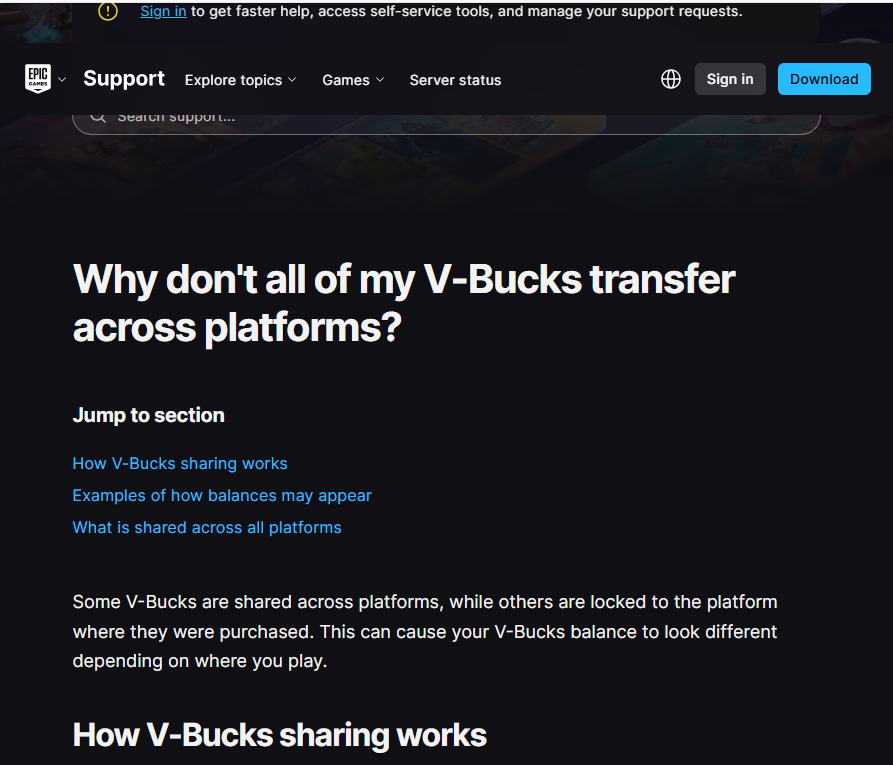
Fortnite illustrates why current, game-specific documentation is essential. Epic says items are generally shared between platforms linked to the same Epic Games account. The older assumption that PlayStation-purchased V-Bucks never appear on PC is no longer an accurate general rule because Fortnite now has a Shared Wallet across most supported platforms. Nintendo remains an important exception in certain V-Bucks situations, so players still need to check the current wallet rules before deciding where to redeem or spend currency.
Activision applies a different structure. It states that supported game progress and purchased or earned content can follow the same Activision account, while COD Points may remain tied to a platform account. Content purchased with those points may nevertheless be available on supported platforms.
Apex Legends has its own exception. EA says Apex Coins are held in wallets and that Nintendo Switch and Nintendo Switch 2 use a different wallet from other platforms.
These examples show why phrases such as “purchases transfer” or “currency does not transfer” are not precise enough. You need separate answers for the balance, the purchased item, the platform license, and the progression attached to it.
Also distinguish cross-platform progression from ordinary console migration. Nintendo supports transferring save data between compatible Nintendo systems and provides Save Data Cloud for eligible software, but those tools do not automatically make the save available on Steam or another console brand.
Likewise, PlayStation offers methods for moving supported saves between PlayStation consoles or between local and cloud storage. Sony notes, for example, that PS4 saves can be copied through USB in situations where PS5 save files cannot. These are PlayStation storage procedures, not evidence that the game supports cross-save with PC, Xbox, or Switch.
Verify Ownership Before Creating Any Link
Before pressing the final link button, record the current state of both accounts. Screenshots are useful because they give support staff concrete evidence if something later appears missing.
Capture or write down:
- The publisher account email and ID
- The platform username and account ID
- Current character level or campaign position
- Currency balances on each platform
- Important purchased items and DLC
- The connected-account page
- Any warning displayed during linking
- The date and time of the change
On PC, make a separate backup of local save files when the game permits it. Do not disable cloud synchronization automatically. Disabling it without understanding which copy is newer can create another conflict. Instead, verify the local file location, note the modification time, and preserve a copy outside the normal synchronization folder.
Next, read the official instructions for the exact game and platform combination. Search the publisher’s support center using the game title plus terms such as “cross-progression,” “cross-save,” “linked accounts,” “primary account,” “merge,” “currency,” and “unlink.”
Pay close attention to warnings involving:
- One publisher account per platform account
- A permanent primary account
- Progress that cannot be combined
- A relinking cooldown
- Content remaining with the original account
- A transfer deadline
- A one-time migration
- Unsupported regions or platform generations
EA, for example, says only one EA Account can be connected to a platform account at a time and warns that some platforms may effectively offer only limited opportunities to change the connection. Its current documentation also describes situations in which a Steam account cannot be connected to a different EA Account until the previous link is more than 12 months old.
That is why unlinking should never be treated as a harmless reset button.
Stop the process and contact official support before linking when you cannot determine which publisher account owns your existing progress, the platform is already connected to an unfamiliar account, two platforms contain substantial but different progress, or the documentation mentions selecting a primary profile without explaining what happens to the secondary one.
Community posts can help reveal practical problems, but they should not override current official instructions. A forum answer written before a migration, account-system update, or shared-wallet change may now be wrong.
Recover Missing Progress Without Making the Problem Worse
When progress does not appear after linking, first confirm that you signed in to the same publisher account on both platforms. Compare the connected-account page with the account ID displayed inside the game. Then close and restart the game so it can refresh the server-side profile.
Check whether the original platform still displays the expected progress. If it does, document it and leave the account connected while you investigate. Also confirm whether the missing content is truly transferable. A missing currency balance may be an expected platform-wallet restriction rather than a failed save transfer.
Do not immediately create a second publisher account, start new progression, delete local saves, choose a different primary profile, or unlink the platform. Any of those actions can complicate ownership records or create additional save conflicts.
Contact the game publisher rather than the console manufacturer when the missing data is stored on the publisher’s servers. Provide the account IDs, platforms, screenshots, approximate last successful login, missing content, and the actions already taken. Contact the platform holder when the problem concerns a console cloud backup, local save transfer, subscription-based storage feature, or store license.
The safest rule is straightforward: link only after confirming the account that owns your progress, the data categories that transfer, and the consequences of unlinking. When official documentation does not clearly answer all three, preserve the current accounts and ask support before making an irreversible change.